

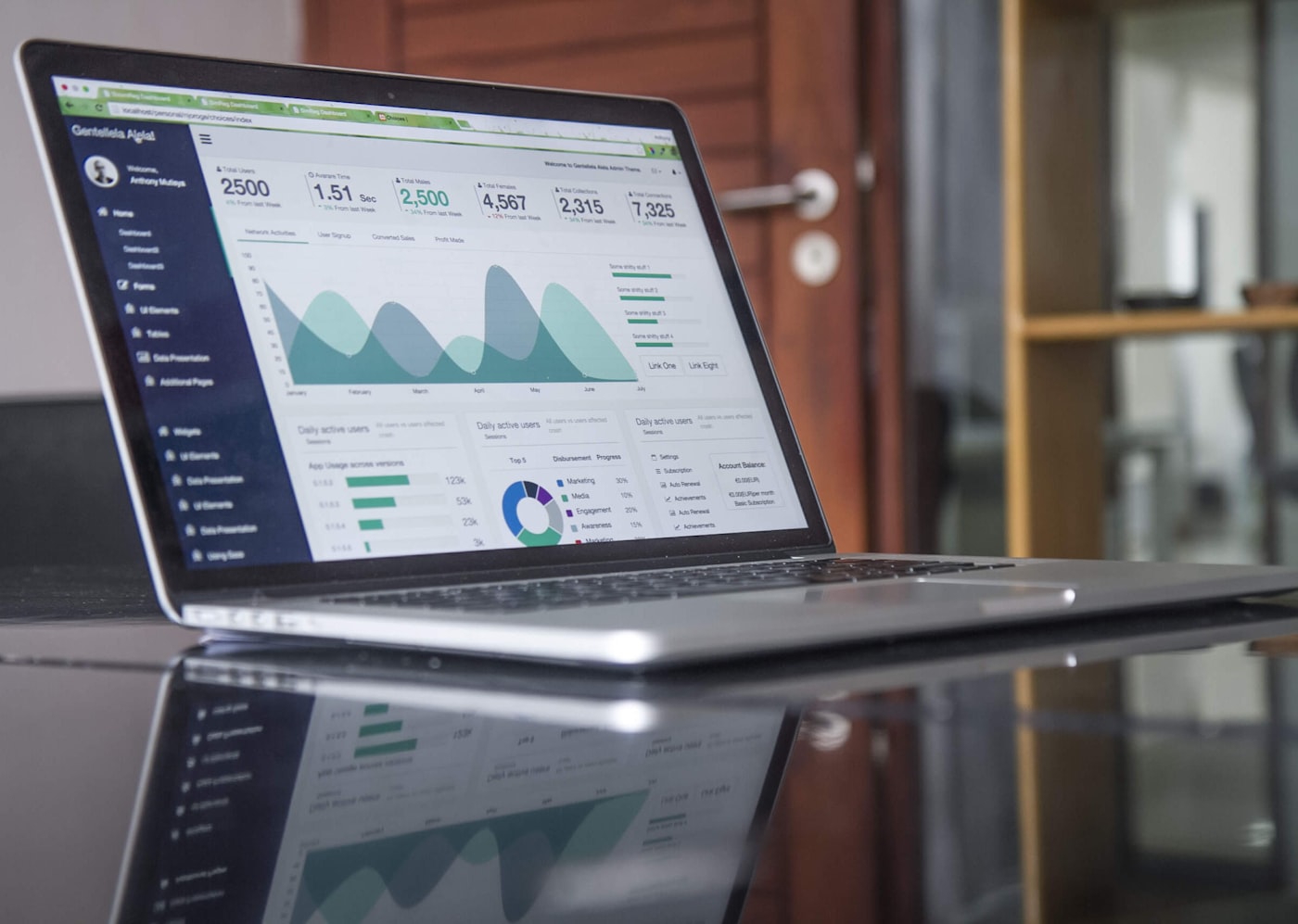
The notification preferences page with in-app and email toggles per event
Open notification preferences
- Select Settings in the navigation.
- Open Notification Preferences.
- Toggle In-app and Email independently for each event type, then save.
What triggers notifications
New Messages also raise in-app and push notifications.
The in-app bell
The bell icon in the header shows a badge with your unread count. Select it to open the notification list, then select any notification to jump to the related record.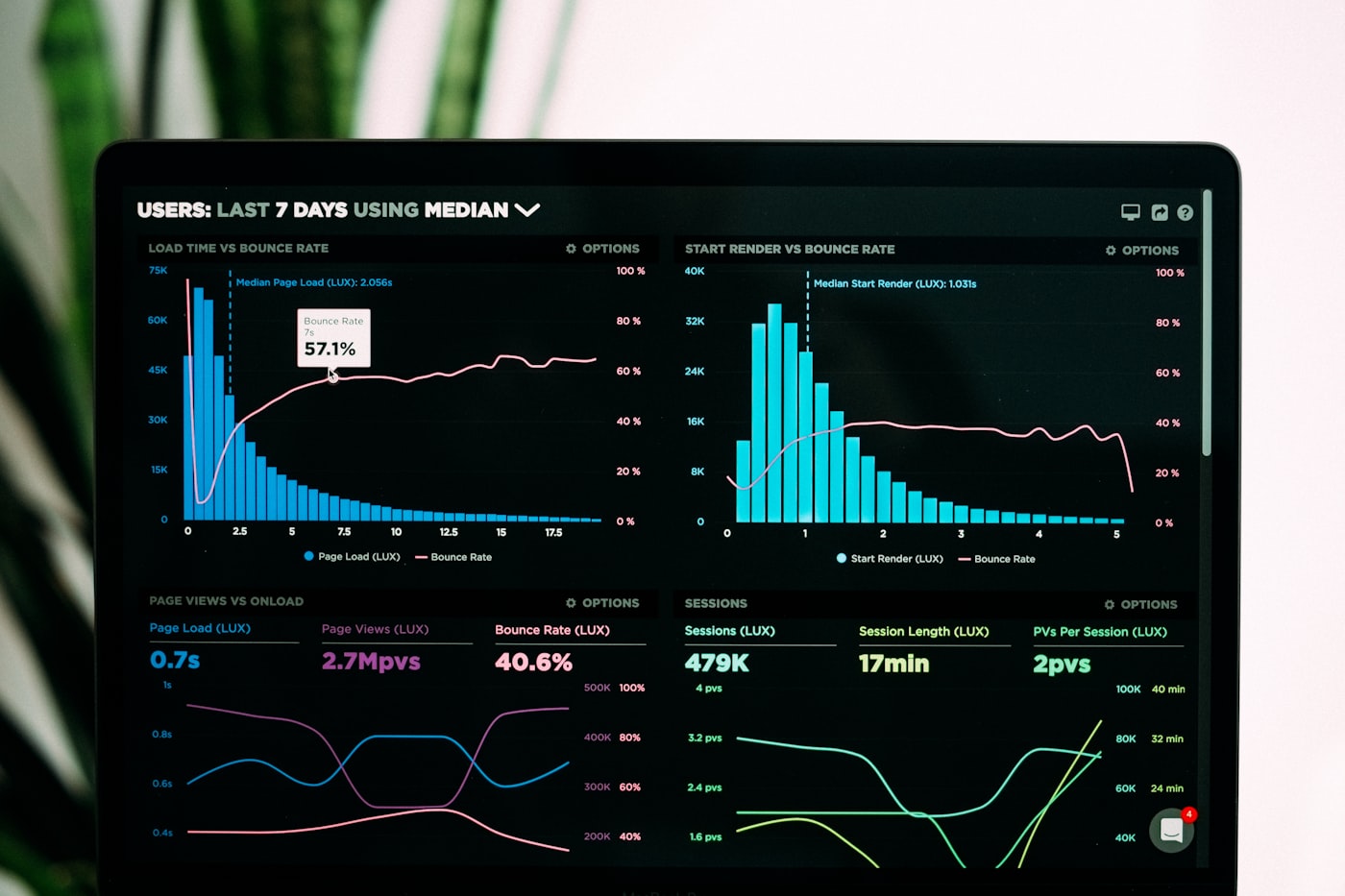
The in-app notification bell with unread notifications open
Email notifications
Email notifications go to the address on your account. Each email links directly to the relevant work order, request, or item.Mobile push notifications
On the mobile app, in-app notifications are delivered as push notifications when the app is in the background. Allow notifications when the app first asks, or enable them later in your device settings. See Get the mobile app.Notification preferences are personal — they only affect your own account. Admins cannot change another user’s preferences.
Frequently asked questions
I stopped receiving emails. What should I check?
I stopped receiving emails. What should I check?
Confirm the email toggle is on for that event type, check your spam folder, and verify your account email is correct in your profile.
Who receives low-stock notifications?
Who receives low-stock notifications?
Users with inventory access whose location scope includes the affected stock location. See Inventory.
Can I mute a single conversation or work order?
Can I mute a single conversation or work order?
Notification toggles apply per event type, not per record. Turn off the channel for that event type if it is too noisy.